
McDonald's Fries Selfie - Casual Glam Portrait
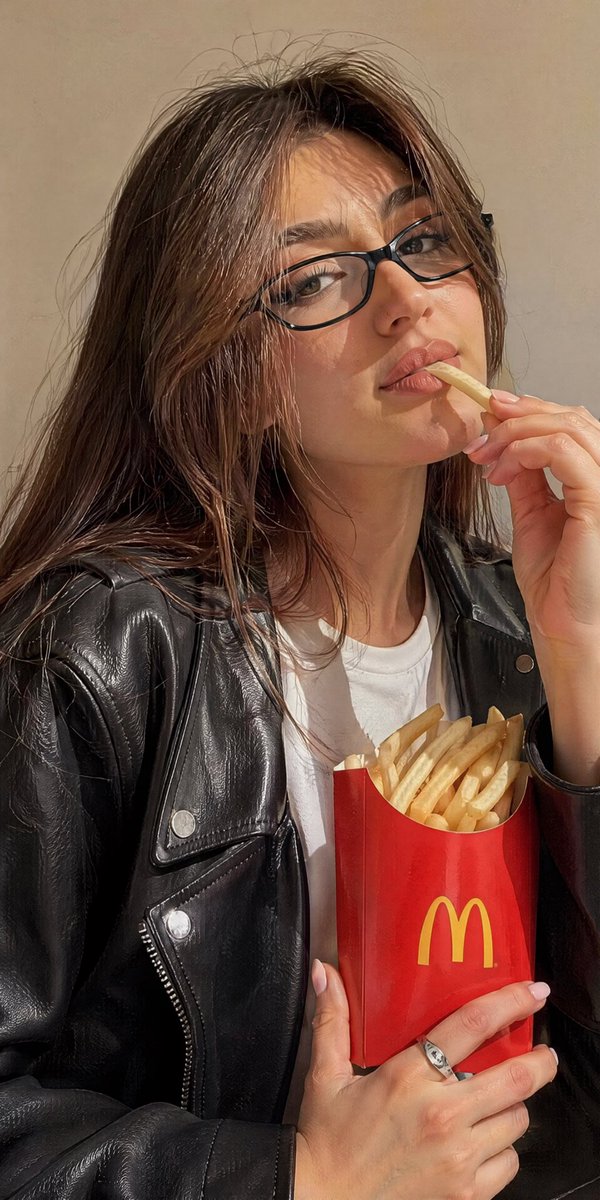
A selfie while eating McDonald's French fries, with a relaxed sensual pose, glowing makeup, wearing a black leather biker jacket over a white T-shirt, cat-eye glasses and a silver ring, against a light beige wall, casual glam style, shot on iPhone 16 Pro, 9:16 aspect ratio.
Prompt
Strictly preserve the appearance 1:1. Use the face from my reference photo (face reference) and maintain 100% recognizability: do not change the face shape, nose shape, eyebrow shape, lips, eye shape and color, hair length, or hair color. Concept: a selfie while eating McDonald’s French fries. Pose: with one hand bringing a French fry to slightly parted lips, while holding the iconic red McDonald’s fries carton against the chest with the other hand. Relaxed, sensual expression. Looking directly into the camera through glasses. Hair worn down. Makeup: glowing skin, winged eyeliner, nude-brown lips, well-defined brows. Lighting: soft, even indoor lighting. Outfit: a black leather biker jacket with snap buttons over a white T-shirt. Materials: leather, cotton. Accessories: narrow black cat-eye glasses and a silver ring. Scene: a light beige wall. Style: casual glam selfie. Camera angle: front-facing, close-up portrait. The photo should be bright, neutral, and clean. Shot on an iPhone 16 Pro. Slight natural film grain. If the girl’s manicure is visible, it should be short, square-shaped, light pink, with no text or nail art. Mood: bold, stylish, and effortlessly casual. Aspect ratio: 9:16. No distortions: no deformed hands, no extra fingers, correct facial proportions, symmetrical eyes, no warped features, natural anatomy, no artifacts. Skin realism: natural skin texture, visible pores, subtle freckles, realistic skin tones, no plastic-looking skin, no excessive skin smoothing, and realistic soft highlights.
Kynvio Prompt Workflow
How to use this prompt
Open it in Image Studio
Send the prompt to Kynvio AI without starting a generation.
Adapt the details
Replace the subject, setting, colors, text, or composition for your goal.
Review and generate
Choose your final settings, then click Generate when you are ready.
Related GPT Image 2 prompts
GPT Image 2 prompts
About this prompt
Will opening this prompt spend credits?
No. The button only prefills Image Studio. Credits are used only after you start a generation.
Can I edit the prompt first?
Yes. The transferred text is fully editable before you generate an image.