Qwen Image 2.0 AI Image Generator

Create image concepts with Qwen Image 2.0 when you want prompt control and negative prompt guidance.

Controlled conceptsStyle testsCleaner promptsVisual alternatives
Start creating
Qwen Image 2.0 model logoQwen Image 2.0|Text to Image|1:1|1K|1

Related generators

Use this model-specific page to understand the strengths, tune the prompt, and carry the selected platform model into the Kynvio workspace.

Qwen Image 2.0 generated image examples

Review the output, prompt, mode, resolution, and use case before you open the workspace.

Qwen Image 2.0 clean technology poster with glass materials and controlled negative space

Controlled tech poster

A controlled prompt sample where negative prompt direction helps keep the scene clean.

Text to image1:11K0 refsPrompt control
Create a clean technology poster for a compact AI hardware device, glass and brushed metal, centered object, cool white light, generous empty space, no people, no random text, no cables.

Qwen Image 2.0 minimal ceramic humidifier ecommerce visual on a soft gray background

Minimal humidifier visual

A minimal ecommerce sample for checking object geometry and clean negative space.

Text to image4:32K0 refsEcommerce hero
Create a minimal ecommerce hero for a white ceramic humidifier, three-quarter angle, soft gray background, clean contact shadow, accurate circular opening, no steam overload, no extra props.
Qwen Image 2.0 decluttered reference edit with clean catalog background

Reference declutter edit

A reference cleanup sample for removing distractions without damaging product edges.

Image to image1:11K1 refsCleanup edit
Using the reference product, create a clean catalog image, preserve the main object, remove background clutter, keep natural shadow, avoid distorted edges, avoid extra text or labels.
Qwen Image 2.0 minimal furniture interior with controlled daylight and no clutter

Controlled interior scene

A controlled interior sample for reducing clutter, oversaturation, and stray objects.

Text to image3:22K0 refsInterior concept
Create a cozy interior scene for a furniture brand, single lounge chair, natural daylight, warm neutral palette, avoid clutter, avoid oversaturation, no people, no random wall text.
Qwen Image 2.0 stylized character portrait with precise color palette and clean background

Palette-controlled portrait

A palette-control sample for keeping a stylized portrait within a tight visual system.

Text to image1:11K0 refsStyle control
Create a stylized character portrait with a teal, ivory, and charcoal palette, clean background, sharp silhouette, avoid extra accessories, avoid distorted eyes, no text.

How to use Qwen Image 2.0 for image generation

Qwen Image 2.0 is the controlled prompt route for clean concepts, negative-prompt direction, and images where reducing unwanted clutter is important.

Strong fit for

Use it when the brief has clear constraints, avoided elements, or a need for cleaner technical and poster-style outputs.

Choose another model when

Use broader creative models when you want more surprising open-ended art direction or heavy reference preservation.

Prompt structure

  1. 1State the desired subject and the unwanted elements in separate clauses.
  2. 2Use explicit material, background, and composition constraints.
  3. 3Review the result against both what should appear and what should be absent.

Prompt recipes

Controlled tech poster

A clean visual prompt with clear exclusions for clutter and fake typography.

Create a clean technology poster for a compact AI hardware device, glass and brushed metal, centered object, cool white light, generous empty space, no people, no random text, no cables.
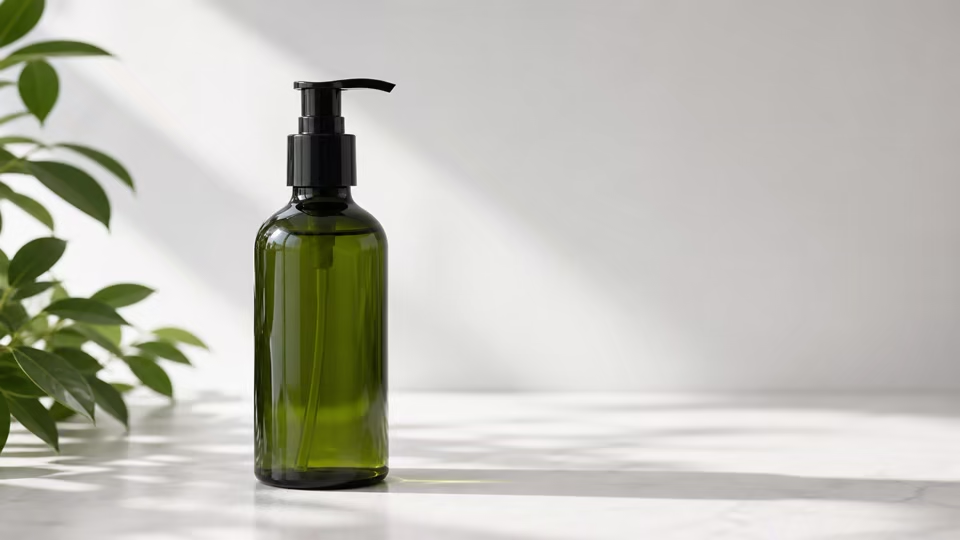
1:11KText to imageNegative prompt when available

Check whether excluded clutter and fake text actually stayed out.

Minimal ecommerce visual

Useful for product pages that need simple, controlled variants.

Create a minimal ecommerce hero for a white ceramic humidifier, three-quarter angle, soft gray background, clean contact shadow, accurate circular opening, no steam overload, no extra props.
4:32KText to image1-2 outputs

Check product geometry and whether the simplicity still feels intentional.

Reference declutter edit

Use a source image while removing distractions from the frame.

Using the reference product, create a clean catalog image, preserve the main object, remove background clutter, keep natural shadow, avoid distorted edges, avoid extra text or labels.
1:11KImage to image1 reference

Check that cleanup did not damage the product outline or key details.

Controlled interior scene

A constraint-heavy prompt for reducing clutter, oversaturation, and stray objects.

Create a cozy interior scene for a furniture brand, single lounge chair, natural daylight, warm neutral palette, avoid clutter, avoid oversaturation, no people, no random wall text.
3:22KText to imageNegative prompt when available

Check whether the scene remains warm while obeying the exclusions.

Palette-controlled portrait

A portrait prompt for keeping a stylized image inside a tight color system.

Create a stylized character portrait with a teal, ivory, and charcoal palette, clean background, sharp silhouette, avoid extra accessories, avoid distorted eyes, no text.
1:11KText to imageNegative prompt when available

Check color discipline, facial structure, and whether the portrait avoids unwanted accessories.

Choose image models by use case

If you have not chosen a model yet, start from image editing, image-to-image, background changes, object removal, product photos, posters, ecommerce image sets, or logo generation, then pick the image model that fits the task.

AI Image Editor

Use Kynvio AI as an AI image editor to edit images with prompts, change backgrounds, clean product photos, refine portraits, and create image-to-image variants.

View use-case guide

Image to Image AI Generator

Use Kynvio AI as an image to image AI generator for reference-guided image variations, product redraws, style changes, and prompt-based image edits.

View use-case guide

AI Background Remover

Use Kynvio AI to remove backgrounds, create product cutouts, clean profile images, and make white background product photos with prompt-based edits.

View use-case guide

AI Background Changer

Use Kynvio AI to change image backgrounds, create branded scenes, make ad background variants, and refresh ecommerce images with prompt-based edits.

View use-case guide

AI Object Remover

Use Kynvio AI to remove objects from photos, clean product images, erase distractions, rebuild backgrounds, and create polished image-to-image edits.

View use-case guide

AI Product Image Generator for Product Photos

Create AI product photos, ecommerce hero images, and clean product visuals from prompts or product references with Kynvio AI.

View use-case guide

AI Poster Generator

Create AI posters with Kynvio AI for campaigns, product launches, event visuals, social covers, and reference-guided poster edits.

View use-case guide

AI Ecommerce Image Generator

Use Kynvio AI to create coordinated ecommerce images for marketplace listings, product galleries, detail pages, ads, and social commerce from product references or prompts.

View use-case guide

AI Logo Generator

Use Kynvio AI as an AI logo generator to create logo concepts, brand marks, ecommerce store logos, creator channel avatars, and app icon directions.

View use-case guide

Real Qwen Image 2.0 task examples

Controlled concepts visual brief

Scenario
A creator needs a concrete image direction before committing to a campaign, product, or social asset.
Example input
A clean technology poster with glass materials, cool lighting, no extra text, no distorted hands.
Expected output
A prompt-ready visual direction with subject, composition, lighting, style, and usage notes.
Why this model
Choose Qwen Image 2.0 for controlled concepts, negative prompt guidance, and cleaner visual alternatives.

Style tests variation

Scenario
A designer wants a second direction that preserves the core idea while exploring layout or style.
Example input
A cozy interior scene for a furniture brand, natural daylight, avoid clutter and oversaturation.
Expected output
A reusable prompt that clarifies what should change, what should stay consistent, and how the output should be judged.
Why this model
Qwen Image 2.0 is useful here because the model page emphasizes Text to image, Image to image, Negative prompts.

Cleaner prompts production check

Scenario
A team wants the first result to be easier to review before producing more image candidates.
Example input
A stylized character portrait with precise color palette and negative prompt controls.
Expected output
A focused image prompt plus review criteria for brand fit, subject accuracy, crop safety, and unwanted artifacts.
Why this model
Qwen Image 2.0 fits this case because its public page is built around Controlled concepts, Style tests, Cleaner prompts, Visual alternatives.

Estimated credits

Calculated before generation

The live quote uses Kynvio pricing rules for this default setup. Final usage is confirmed in the workspace before any credits are spent.

Speed tier: Balanced

Actual wait depends on queue and provider availability, selected resolution, duration, and uploaded reference media.

Default capability guide

These limits come from the same public model metadata used by the Kynvio workspace. The final generation page still validates uploads, plan access, and provider availability before spending credits.

Modes

Text To Image, Image To Image

Ratios

1:1, 4:3, 3:4, 16:9, 9:16, 3:2, 2:3

Resolution

1k, 2k

Output count

Up to 4 images

Reference images

Up to 10

Best for

Choose Qwen Image 2.0 for controlled concepts, negative prompt guidance, and cleaner visual alternatives.

Tradeoff

It is best when you know what to avoid; choose broader creative models for more open-ended ideation.

Use instead when

Use Seedream 5.0 Lite for wide layouts, or GPT Image 2 for high-fidelity commercial edits.

Qwen Image 2.0 key features

Use this model-specific page to understand the strengths, tune the prompt, and carry the selected platform model into the Kynvio workspace.

Text to image

Qwen Image 2.0 turns detailed prompts into product images, campaign graphics, social visuals, and concept drafts.

Image to image

Use source images or references to keep the subject, starting frame, style, or composition aligned before continuing in the workspace.

Negative prompts

Use negative prompts to reduce unwanted text, clutter, distorted details, or visual styles that do not fit the brief.

1K to 2K outputs

Choose 1K to 2K outputs based on whether you need fast drafts, social posts, or higher-detail final assets.

How to use Qwen Image 2.0 AI Image Generator

Step 1

Open the Qwen Image 2.0 page and write the subject, style, lighting, and final use case.

Step 2

Choose the image model settings in the prompt bar so the workspace opens with the right setup.

Step 3

Click Generate to continue inside Kynvio AI, review the settings, then run the real generation from the app.

Example prompts

A clean technology poster with glass materials, cool lighting, no extra text, no distorted hands.
A cozy interior scene for a furniture brand, natural daylight, avoid clutter and oversaturation.
A stylized character portrait with precise color palette and negative prompt controls.
A minimal ceramic humidifier ecommerce image with soft gray background and accurate circular opening.
A catalog cleanup edit that preserves the product while removing clutter and extra labels.

FAQ

What are negative prompts for?

They tell the model what to avoid, such as clutter, distorted details, extra text, or unwanted styles.

Can I use references?

Yes. Qwen Image 2.0 supports reference-guided image generation in the studio.

When should I avoid Qwen Image 2.0?

If the brief is open-ended and you want surprising art direction, start with a broader creative model. Use Qwen when the exclusions and constraints are already clear.

What prompt details work best with Qwen Image 2.0?

Include the subject, final use case, composition, lighting, material details, and what should stay out of the frame. Add references when the workflow depends on an existing product or style.

How should I evaluate the first image output?

Check subject accuracy, visual hierarchy, brand fit, unwanted text, and whether the image works at the target crop. Then refine the prompt or references before creating the next version.

Try Qwen Image 2.0 with your next prompt

The public page explains the model. The Kynvio workspace handles the real generation flow, credits, uploads, and history.

Start creating