
Extract Depth Map with GPT Image 2
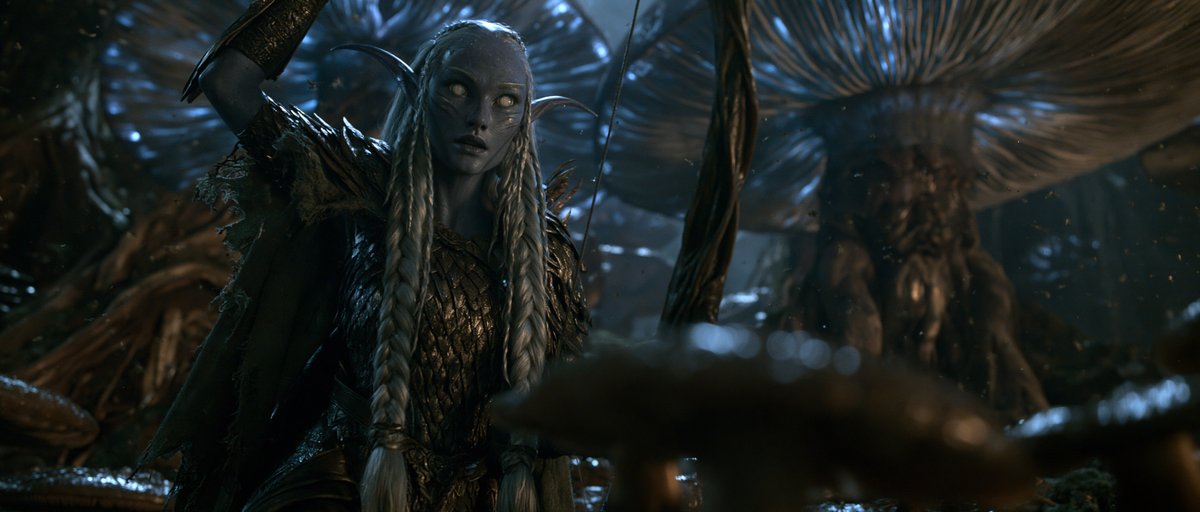
This tutorial shows how to start with a reference image and then extract a depth map using GPT Image 2 or Nano Banana. The depth map is a grayscale linear map where white is nearest and black is farthest, preserving geometry and edges while removing color and texture.
Prompt
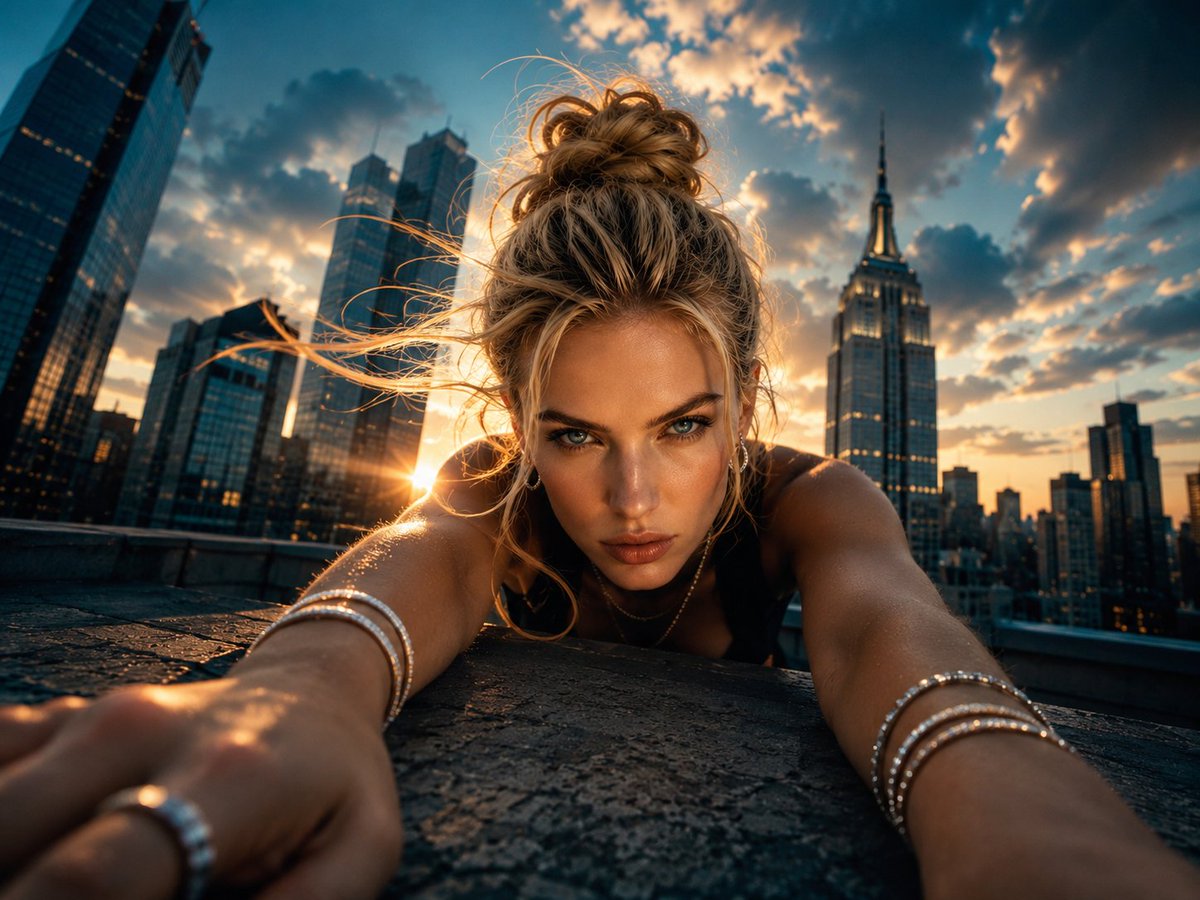
Start with the image you want to use as the tone and final look. Then extract a depth map using Nano Banana or GPT Image 2 with this prompt: Convert this image into a physically accurate grayscale linear depth map. White = nearest, black = farthest. Preserve geometry, silhouettes, and occlusion boundaries. Use smooth surface depth gradients and crisp object edges. Remove all color, texture, lighting, shading, outlines, normals, and ambient occlusion. Output only the clean depth map. For this example, I used an image I generated with midjourney.
Kynvio Prompt Workflow
How to use this prompt
Open it in Image Studio
Send the prompt to Kynvio AI without starting a generation.
Adapt the details
Replace the subject, setting, colors, text, or composition for your goal.
Review and generate
Choose your final settings, then click Generate when you are ready.
Related GPT Image 2 prompts
GPT Image 2 prompts
About this prompt
Will opening this prompt spend credits?
No. The button only prefills Image Studio. Credits are used only after you start a generation.
Can I edit the prompt first?
Yes. The transferred text is fully editable before you generate an image.