
Guide to Using ChatGPT Work Skills
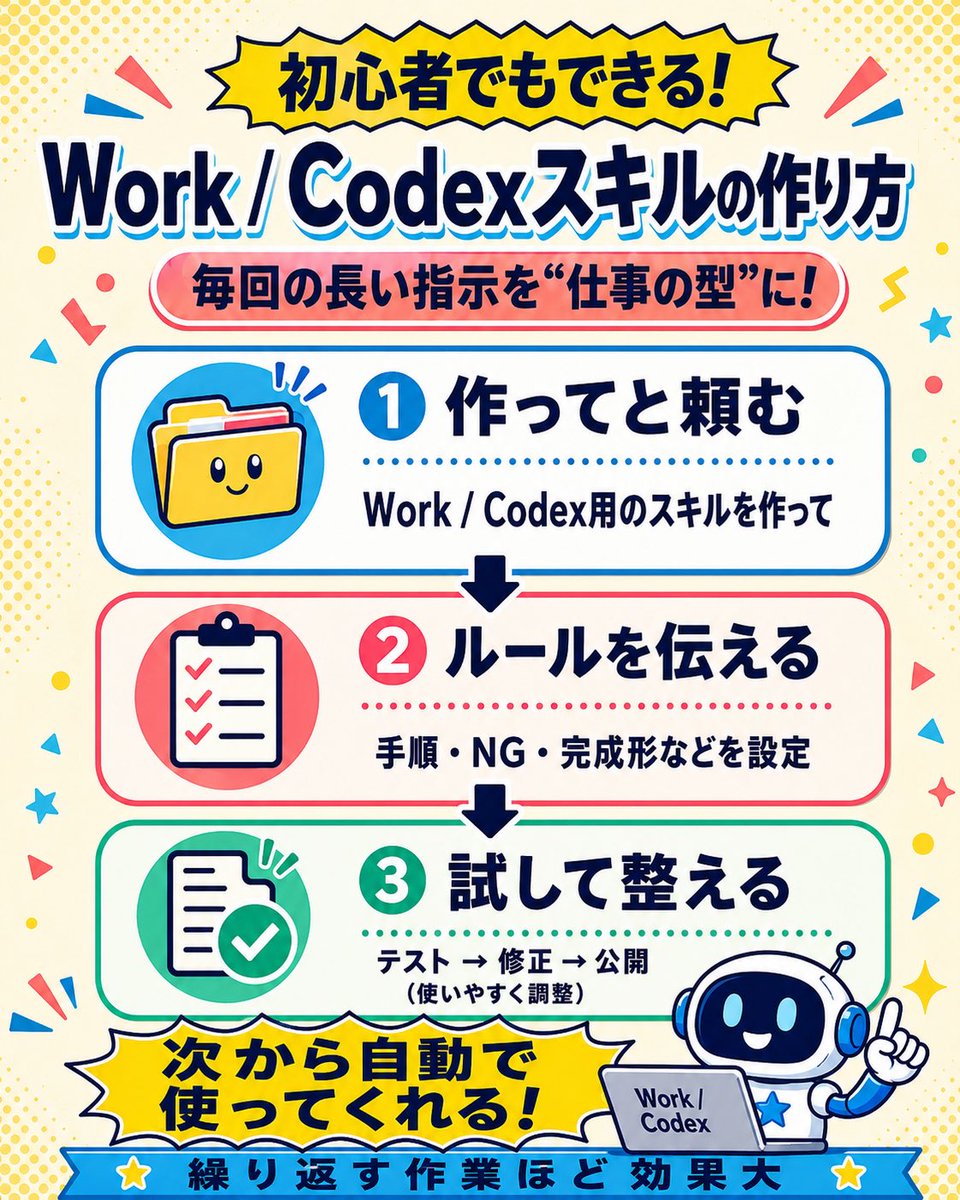
This article introduces how to use the "Skills" feature in ChatGPT Work, including how to create, test, and install skills, and how to design trigger conditions. It is suitable for tasks that require repetitive execution of specific rules, such as image generation and prompt design.
Prompt
[For Beginners] ChatGPT's Work allows you to use "Skills"! A skill is a set of instructions that tells the AI "please proceed with this task in this way." By "skillifying" frequently used methods or rules, you can have the AI work according to the same policy without having to explain in detail each time. Creating a skill is easy👇 ① Ask Work to "create a skill for XX" ② Convey the steps, prohibited items, and desired output ③ Test and adjust → Install Created skills can be invoked with @, but Work will automatically trigger the appropriate skill based on the request content. However, depending on the skill design, it may be difficult to trigger. It is recommended to request as follows when creating a skill: ---- Please clearly design the trigger conditions and exclusion conditions for this skill so that it is automatically used when a request with a similar purpose is made. ---- It is especially effective for repetitive tasks with specific rules, such as image generation with GPT image2, prompt design for Seedance 2.0 or Suno! It reduces the need to write long instructions each time and stabilizes quality. Please give it a try! (Feels like a sales pitch...) *Work is basically available from Plus plan and above. Skills are also available in Codex.
Kynvio Prompt Workflow
How to use this prompt
Open it in Image Studio
Send the prompt to Kynvio AI without starting a generation.
Adapt the details
Replace the subject, setting, colors, text, or composition for your goal.
Review and generate
Choose your final settings, then click Generate when you are ready.
Related GPT Image 2 prompts
GPT Image 2 prompts
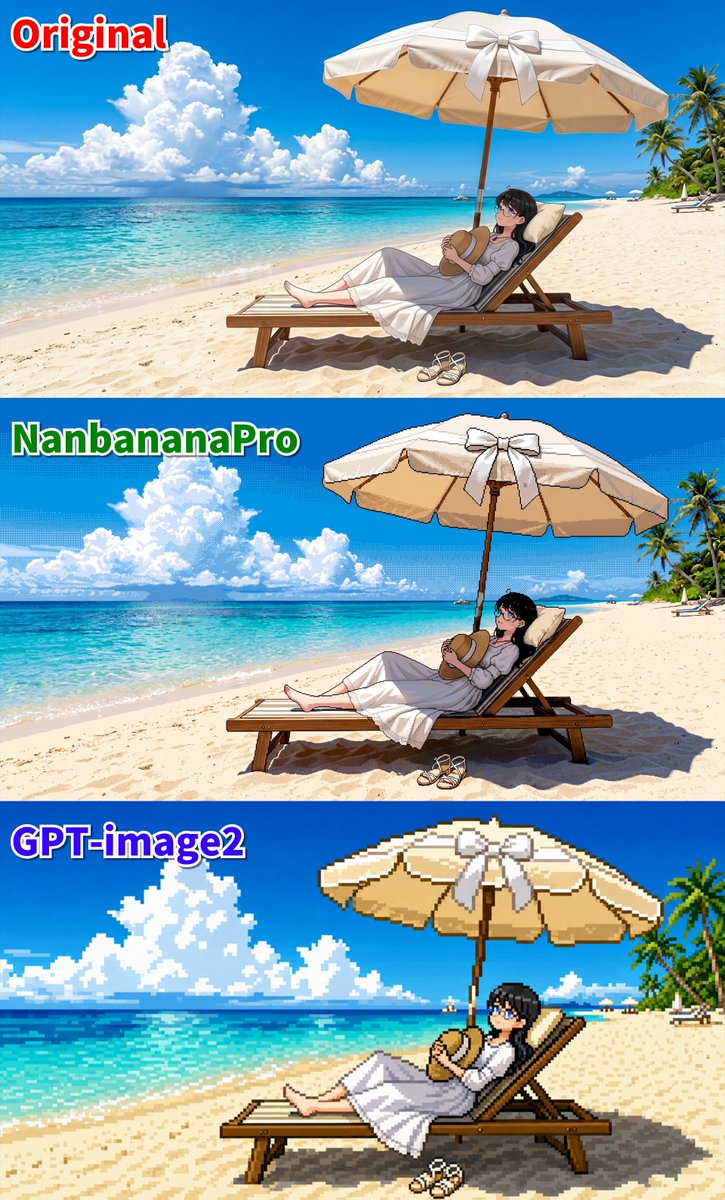
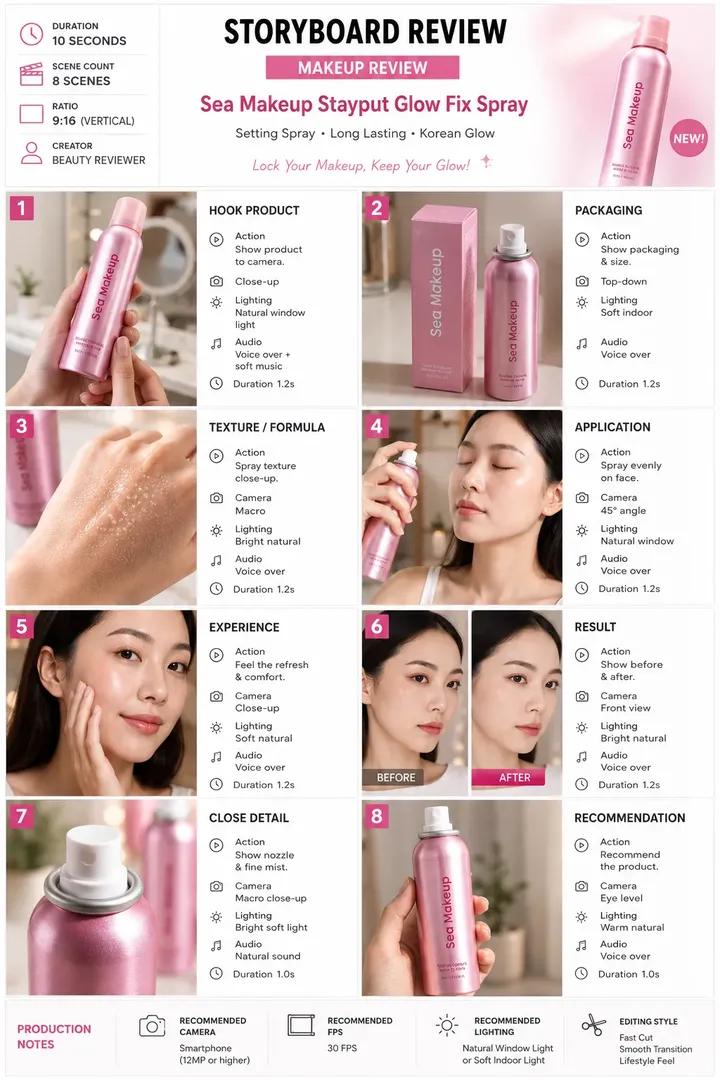
About this prompt
Will opening this prompt spend credits?
No. The button only prefills Image Studio. Credits are used only after you start a generation.
Can I edit the prompt first?
Yes. The transferred text is fully editable before you generate an image.